Blog
How to do supplier statement reconciliation in Xero
17 October 2026 · Darsh Bhatt
The short answer: to reconcile a supplier statement in Xero, run the Payable Invoice Detail report for that supplier over the statement period, filtered to bills and credit notes — or, if the statement lists only unpaid items, Aged Payables Detail as at the statement date. Match every line on the supplier's statement against it, by invoice number and amount. Then explain each difference — usually a payment or invoice in transit, a missing invoice, a duplicate or an unposted credit note — until the statement balance and the Xero balance agree.
That is the whole job. The rest of this guide is how to do it properly, the way I do it at month-end, and what to do when the two numbers refuse to agree.
What is a supplier statement?
A supplier statement is the list a supplier sends you, usually once a month, of everything they think you owe them: the invoices they have raised, the credit notes they have issued, the payments they have received, and the balance left over.
It is their version of your account. Your version is in Xero. Most of the time the two should agree, and the point of a supplier statement is to find out when they do not.
Open-item and balance-forward statements
Statements come in two shapes, and it matters which one you are holding:
- Open-item statements list only what is still unpaid — every invoice and credit note not yet settled, with no payments shown. The total is what they say you owe today. Many wholesalers send these.
- Balance-forward statements, sometimes called activity statements, start from last month's balance and list everything since: invoices, credit notes and the payments they received.
Check which kind you have before you start, because you match them against different reports in Xero.
What is supplier statement reconciliation?
Supplier statement reconciliation is checking the supplier's statement against your own records, line by line, and explaining every difference between the two balances.
You will also hear it called supplier reconciliation, supplier account reconciliation, creditor reconciliation or purchase ledger reconciliation — they are the same job. In American usage it is accounts payable or vendor reconciliation.
It matters for three reasons:
- Missing invoices. An invoice on their statement that never reached you is usually the reason a supplier puts your account on stop.
- Duplicates. A bill posted twice in Xero is where duplicate payments start.
- Credit notes. Credits the supplier has raised but you have not posted, or credits you are owed that they have not raised, are money left on the table.
How to reconcile supplier statements in Xero, step by step
Xero does not have a supplier statement reconciliation feature. Bank reconciliation is built in; reconciling a supplier's statement is something you do yourself, with Xero's reports. This is the routine.
1. Start with the statement
Note three things before you open Xero: the statement date, the period it covers, and the closing balance. Everything after this is about explaining that one closing balance.
2. Pull the supplier's account from Xero
For a balance-forward statement, go to Reports and open Payable Invoice Detail — the supplier bill activity report. Then:
- Filter by contact and choose the supplier you are reconciling.
- Set the date range to the period the statement covers.
- Filter by source to bills and credit notes, so you see the supplier's whole activity rather than just what is still unpaid.
For an open-item statement, run Aged Payables Detail for the same supplier as at the statement date instead. It lists the bills and credit notes Xero still shows as unpaid on that date — the same thing an open-item statement lists — so the two can be matched line for line.
Either way, the Aged Payables Detail total is what Xero says you owe on the statement date, and it is the number to check the closing balance against.
3. Compare the two balances
If the statement balance and the Xero balance agree, check a handful of lines and you are done. If they do not, the difference is what you are about to explain — write it down, because every item you find should take a piece out of it.
4. Match line by line
Work down the statement and tick each invoice and credit note off against the Xero report, by invoice number and amount.
Watch the references. The number you typed into Xero may not be the supplier's own invoice number, so where references do not line up, match on amount and date instead.
Do not rely on date order either. Suppliers often number invoices as they are printed rather than as they are delivered, so two invoices from the same morning can carry numbers far apart, and a later number can sit on an earlier date. Sort both lists by reference, or match them in Excel, rather than reading down in date order.
5. For a long statement, do it in Excel
A supplier with a few lines a month can be ticked off on screen. A busy one cannot. A fresh produce supplier delivering most days can easily put fifty or more invoices on one month's statement, some of them for a few pounds — a top-up delivery, a single forgotten item. For those:
- Export the Payable Invoice Detail report to Excel.
- Convert the supplier's PDF statement to Excel — in Excel for Microsoft 365 on Windows, Data → Get Data → From File → From PDF does it; otherwise use any PDF-to-Excel converter.
- Put the two side by side and look up each statement invoice number in the Xero export with
XLOOKUP(orVLOOKUP). - Filter for the lines that found no match, in both directions. Those are your differences.
6. Sort every difference into a type
Every unmatched line is one of a small number of things — see the list of causes below. Sorting them first tells you which ones need action and which only need time.
7. Act on each one
- Invoice on their statement, not in Xero: ask the supplier for a copy, check the goods actually arrived, then post it.
- Credit note on their statement, not in Xero: post it and allocate it against the right invoice.
- Bill in Xero, not on their statement: check whether it is a duplicate before anyone pays it twice, and void it if so.
- Payment or invoice in transit: nothing to do — it will be on next month's statement. Note it.
- Same invoice, different amount: query it with the supplier and hold that line from the payment run until it is agreed.
8. Record the reconciliation
Write the reconciliation down — statement balance, each reconciling item, Xero balance — and keep it with the statement. Next month starts from it, and anyone checking your work can follow it.
A worked example
This is a statement as it arrives from a produce supplier: open-item, one month, 47 lines. Before reading on, see if you can spot what will not agree with Xero.
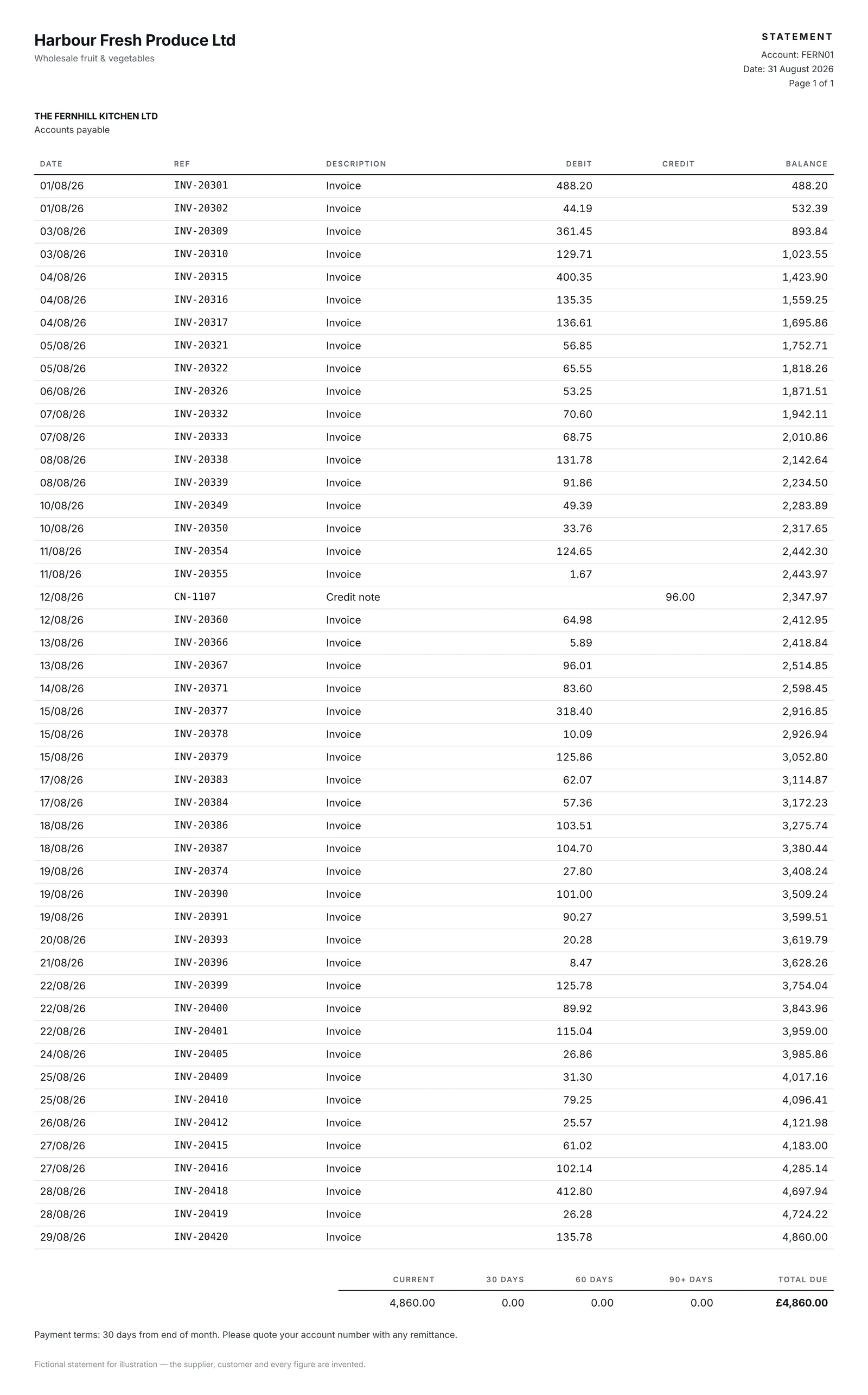
Harbour Fresh Produce's statement at 31 August shows £4,860.00 owed. Xero shows £3,611.60. Matching line by line finds four differences:
| Supplier statement reconciliation — Harbour Fresh Produce, 31 August | £ |
|---|---|
| Balance per supplier statement | 4,860.00 |
| Less: invoice INV-20418, on the statement but not posted in Xero | (412.80) |
| Less: payment made on 30 August, not yet on the statement | (1,250.00) |
| Add: credit note CN-1107, on the statement but not posted in Xero | 96.00 |
| Add: invoice INV-20377, posted twice in Xero | 318.40 |
| Balance per Xero | 3,611.60 |
| Unexplained difference | 0.00 |
Three of those need action — get a copy of INV-20418 and post it, post CN-1107, void the duplicate INV-20377 — and one, the payment, only needs a month.
Supplier reconciliation template
Copy this layout for each supplier. The last line should always be zero; if it is not, there is a line you have not found yet.
| Supplier reconciliation | £ |
|---|---|
| Supplier name and statement date | |
| Balance per supplier statement | |
| Less: invoices on the statement, not in Xero | |
| Less: payments made, not yet on the statement | |
| Add: credit notes on the statement, not in Xero | |
| Add: bills in Xero, not on the statement (duplicates, wrong supplier) | |
| Add / (less): amount differences on the same invoice | |
| Balance per Xero | |
| Unexplained difference | 0.00 |
Why your supplier statement doesn't match Xero
When the balances disagree, it is almost always one of these:
- Timing. A payment you made has not reached their statement yet, or an invoice they raised has not reached you yet.
- Invoices that never reached you. The delivery note stayed on site, or the invoice went to an inbox nobody checks.
- Duplicates. The same invoice arrived by email and by post, and both were entered.
- Credit notes. Raised by the supplier but not posted, or posted but not allocated against the invoice they relate to.
- Price or quantity differences. The invoice is for ten cases and eight arrived, or the price is not the one agreed.
- The wrong supplier contact. The same supplier exists twice in Xero under slightly different names, so half its bills sit on the other contact. Search for both.
- Unallocated payments. A payment recorded in Xero but not allocated to the bills it paid shows the right total in the wrong shape.
- Old credits left unapplied. On an open-item statement, a credit note can sit at the top month after month because nobody allocated it in Xero or asked the supplier to take it off a payment. If a credit is older than the current month, deal with it now — post and allocate it, or ask the supplier to offset it against the next payment.
Reconciling across several companies
In a group where each site is its own company with its own Xero, one supplier means one reconciliation per company. The same supplier delivers to every site, each with its own delivery pattern and its own credit notes, and all of the statements land in the same first few days of the month.
Two things help. Ask each supplier for a separate statement per account rather than one group statement you have to split. And keep a list of which suppliers should have sent a statement this month — any supplier you posted a bill or credit note to — because the statements that never arrive are rarely the tidy accounts.
Doing it faster
This is the job Finio was built to take off the month-end. It matches each supplier statement line by line against your live Xero ledger as it arrives, lists the missing invoices, duplicates, unapplied credits and amounts that disagree, and chases the suppliers who did not send a statement at all. Measured in a sandbox entity at live volume, statement reconciliation went from around two days to one to two hours.
You can try it on one of your own statements: upload the supplier's statement and the same supplier's account exported from Xero, and both files are processed in memory and never stored.
And if you want the case for doing it at all, what a supplier statement actually costs you is about the part of the two days nobody counts.
Questions
How often should you reconcile supplier statements?
Every month, when the statements arrive — and always before paying a supplier whose account has a disagreement on it. For small suppliers with a handful of invoices, quarterly can be enough.
Does Xero reconcile supplier statements automatically?
No. Xero reconciles bank statements, but it has no built-in feature for reconciling supplier statements. You do it with the Payable Invoice Detail and Aged Payables Detail reports, by hand or in Excel, or with an add-on.
What is the difference between supplier reconciliation and bank reconciliation?
Bank reconciliation matches your bank statement against the cash in your ledger. Supplier reconciliation matches a supplier's statement against what your ledger says you owe that one supplier.
What is an open-item supplier statement?
A statement that lists only the invoices and credit notes still unpaid, with no payments shown, so its total is what the supplier says you owe today. You reconcile it against Xero's Aged Payables Detail report as at the statement date.
Is creditor reconciliation the same as supplier statement reconciliation?
Yes. Creditor reconciliation, purchase ledger reconciliation and supplier account reconciliation all mean checking a supplier's statement against your purchase ledger and explaining the differences.